In-workout coaching
In-workout coaching can be enabled or disabled for each exercise in a workout routine. If enabled, you will see coaching recommendations as shown below:
Warmup sets
Section titled “Warmup sets”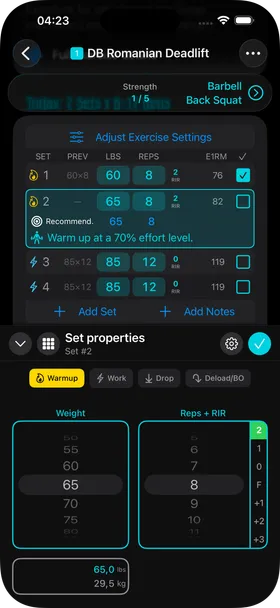
In this example the coach recommends a second warmup set at a 70% effort level. How the effort level is measured depends on the type of exercise — some exercises have no weight at all. For a weighted exercise, 70% is relative to the maximum weight or resistance you used the previous time you performed this exercise.
You can tap the blue 65 and the blue 8 to automatically accept these values if desired.
Work sets
Section titled “Work sets”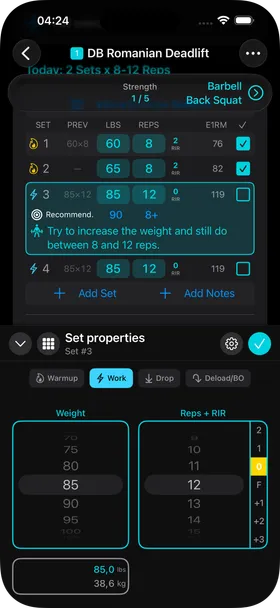
In this example, the coach recommends increasing the weight from 85 to 90 lbs. This is part of automatic progressive overload.
If you accept this, tap the 90 and it will auto-select this weight. Then perform as many reps as you can, and record that number of reps — it will likely be less than the 12 reps you did last time with only 85 lbs of load.
How to modify coaching mode for an exercise
Section titled “How to modify coaching mode for an exercise”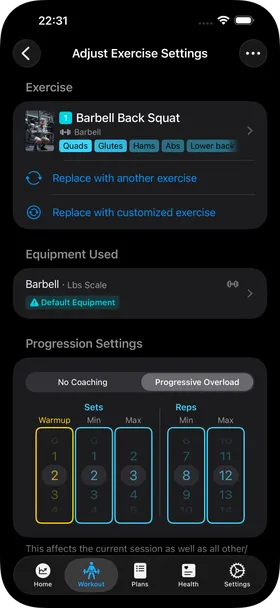
Tap the Adjust Exercise Settings button above the list of sets and you will see this:
In the Progression Settings section, you can choose between No Coaching and Progressive Overload.
If Progressive Overload is selected, the coach will apply a double or triple progression algorithm, just like a human coach would do.
In order to get the maximum benefit from this, make sure to set ranges for sets and for reps instead of equal values.